
Notebook

The webcam with p5 in isolated kernels
After drawing, interactions and images, Basthon's p5 module gains the webcam in isolated kernels: createCapture(VIDEO) works as with the legacy kernel. The video can be shown below the drawing, or drawn on the canvas with image.
from p5 import *

capture = None

def setup():
    global capture
    createCanvas(320, 240)
    capture = createCapture(VIDEO)
    # the video is drawn on the canvas, not shown below
    capture.hide()

def draw():
    background(255)
    # the size of the video is only known once the camera is open
    if capture.width > 0:
        image(capture, 0, 0, width, width * capture.height / capture.width)

run()To protect students, Basthon asks for a confirmation at each call of createCapture, on top of the browser's usual permission: a program cannot turn the camera on behind its user's back. The camera turns off when the drawing is replaced by another one or when the kernel restarts.
Playing videos (createVideo) and sound (p5.sound) are still reserved to the legacy kernel for now.
Drawings, figures and windows in full screen
After the notebook in full screen, it is the turn of Basthon's graphical outputs: p5 drawings, interactive matplotlib figures and tkinter windows now have their own full screen button, in the console as in the notebook.
It appears at the top right when the mouse hovers over the drawing. A click enlarges it to the size of the screen, and it stays interactive: mouse, keyboard, animations. Leave it with the same button or the Esc key. Ideal to project a game or a simulation in class!
tkinter windows in Basthon
It was a recurring request: tkinter programs now work in Basthon. Windows, buttons, entry fields, canvases, animations, menus, ttk widgets, messagebox or simpledialog dialogs… everything is shown in the graphical view of the console or below the cell of a notebook, and reacts to the mouse and the keyboard.
import tkinter as tk

window = tk.Tk()
window.title("Counter")
value = tk.IntVar(window, 0)

tk.Label(window, textvariable=value, font=("Arial", 32)).pack(padx=40, pady=10)
tk.Button(window, text="+ 1",
          command=lambda: value.set(value.get() + 1)).pack(pady=10)

window.mainloop()
There is nothing to install nor to change in the code: import tkinter is enough. The only difference with a computer: mainloop() returns at once. The window stays alive (clicks, keyboard, animations with after) while the rest of the program or other cells run, which can read what was typed in the window. Dialogs, however, do wait for the user's answer, as on a computer.
The gallery gets a few examples, from the simplest to the most complete: a counter, a small drawing program, a brick breaker, and a notebook that gathers a counter, a form with its dialogs, and a snake game.
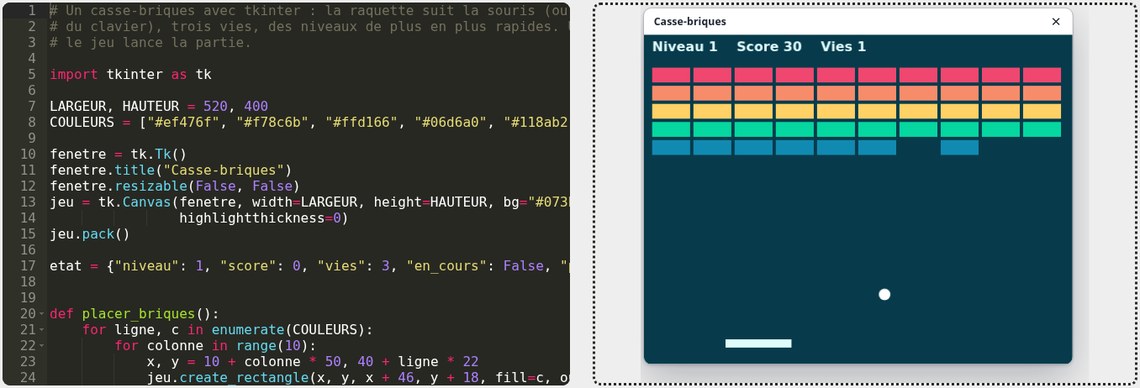
The notebook of examples:
Under the hood
The browser has no Tk: tkinter relies here on tkinter-web-backend, a Tk engine written in Python for Basthon. It computes the windows (pack, grid and place layouts, fonts, canvas items…) like the real Tk, and the page just draws them. It is free software, published on PyPI, which is also useful outside Basthon: python -m tkinter_web program.py shows the windows of a tkinter program in a tab of the browser.
To use the keyboard in a window, click in it first. And to animate, after is the right way (rather than a loop with sleep): the window stays responsive.
Interactive canvases in JavaScript
Basthon's JavaScript kernel can now show a live canvas, like the OCaml kernel: you draw on it, it animates, and it reacts to the mouse and the keyboard.
const canvas = basthon.createCanvas(400, 300);
const ctx = canvas.getContext("2d");

ctx.fillStyle = "orange";
ctx.fillRect(10, 10, 100, 50);

canvas.addEventListener("mousedown", (e) => {
  ctx.beginPath();
  ctx.arc(e.clientX, e.clientY, 10, 0, 2 * Math.PI);
  ctx.fill();
});

basthon.displayLiveCanvas(canvas);
The canvas stays alive after the run: whatever is drawn on it afterwards is shown, for instance with requestAnimationFrame for an animation. The mouse coordinates (clientX, clientY) are those of the canvas, and keys arrive on canvas.ownerDocument. The example of the gallery bounces balls: a click adds one, Esc clears them.
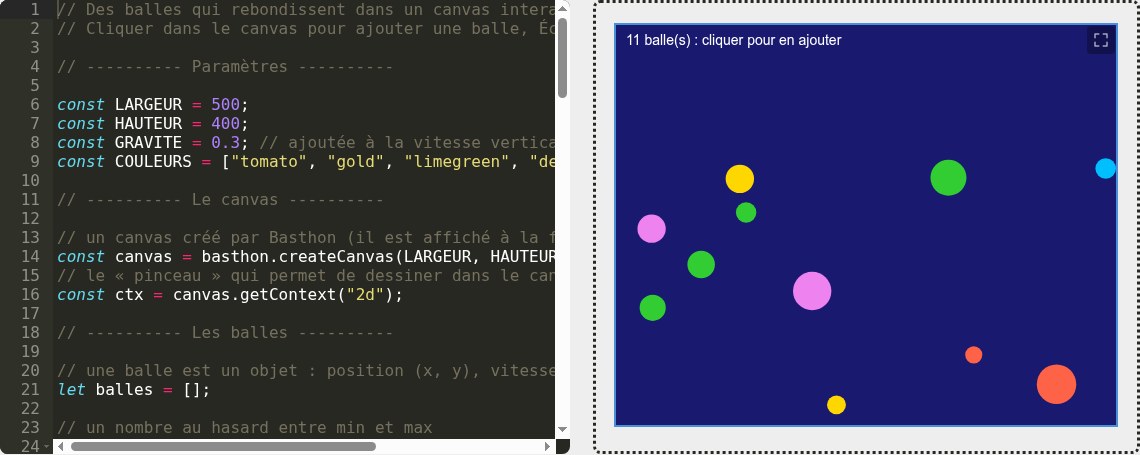
OCaml libraries with #require
Basthon's OCaml kernel can now load libraries, with the #require directive of the OCaml toplevel, as you would with a library installed by opam:
#require "zarith";;
Z.(~$2 ** 200);;
Libraries are only downloaded at the first #require, and are already compiled to JavaScript: they load almost instantly. Here are those available:
| Library | To… |
|---|---|
visu | visualize memory, recursive calls, trees and graphs (Basthon.Visu) |
graphviz | draw graphs described in DOT (Basthon.Graphviz) |
ocamlgraph | graphs and their algorithms (Graph module) |
zarith | big integers and rationals (Z and Q modules) |
containers, containers-data | priority queues, deques, dynamic arrays… |
yojson, csv | read and write JSON and CSV data |
The libraries specific to Basthon are put in the Basthon module: after #require "visu", write for instance module Visu = Basthon.Visu. Basthon.help () lists them all. By the way, the Basthon module gains display_svg and display_html to show an SVG image or HTML.
Each one has its example notebook in the gallery, presented in the following posts.
