
Using Basthon-Notebook
Finding your way around the interface
Basthon-Notebook uses a modified version of the "classic" Jupyter notebook. Most of its features are common and already well documented in the help of Jupyter's classic notebook. Only the features specific to Basthon's version are described here.

| Button | Action |
|---|---|
 | Downloads the content of the notebook into a *.ipynb file. See the section Saving and opening a notebook. |
 | Opens a notebook (*.ipynb) or a *.py file, imports a module or loads an extra file. See the sections Saving and opening a notebook, Using extra files and Importing your own module. |
 | Shares the current content of the notebook through a URL. See the section Sharing a notebook. |
 | Goes back to a previous version of the notebook. See the section Going back to a previous version. |
 | Switches the display between light and dark modes. |
 | Puts the notebook in full screen (or leaves it). |
 | Presents the notebook as a slideshow. See the section Slideshow. |
The other buttons (insert, cut, copy, paste, move and run cells, interrupt and restart the kernel…) are Jupyter's.
Saving and opening a notebook
To save the notebook into a *.ipynb file, use the button.
To load a notebook from a *.ipynb file, use the button.
This button also loads extra resources such as text files, images or even Python modules: see the sections Using extra files and Importing your own module.
Info
The content of the notebook is kept by your browser: you find Basthon in the state you left it in.
Opening a blank notebook
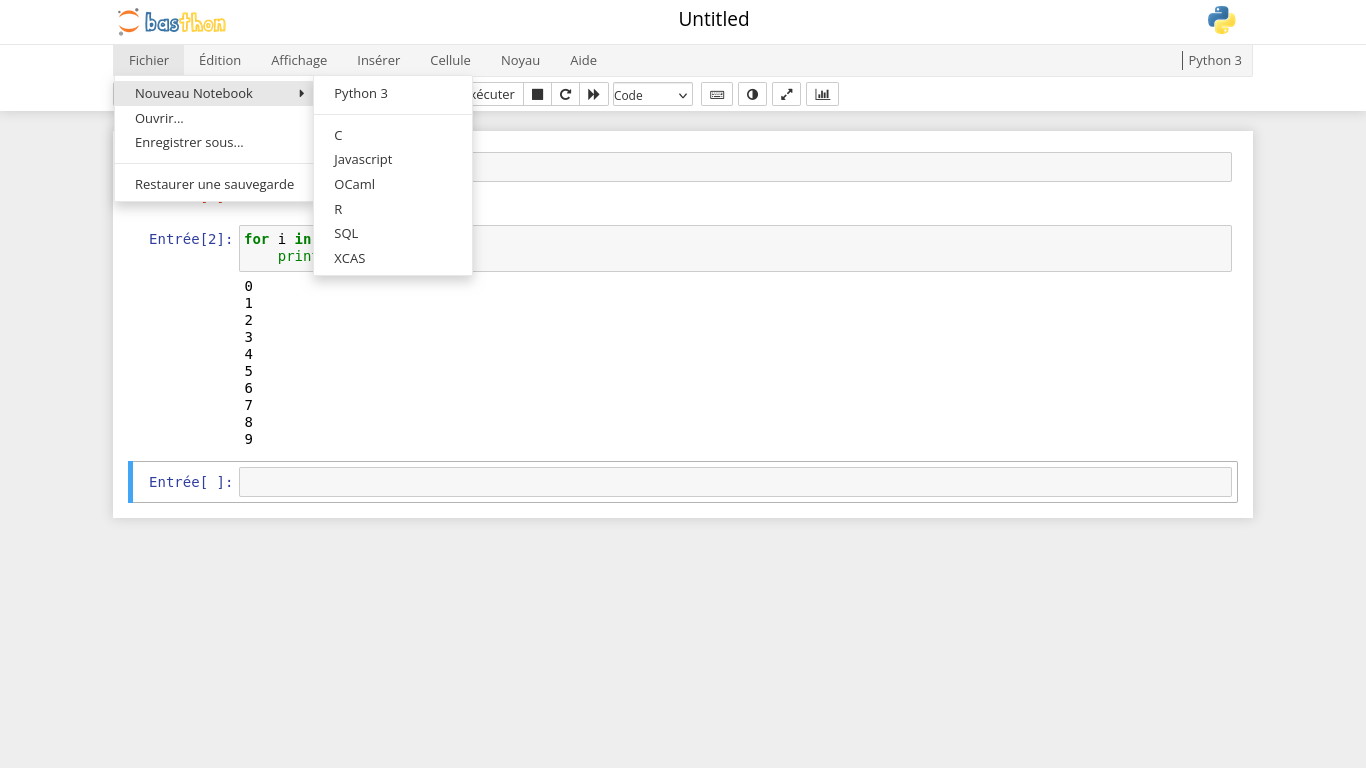
An empty notebook can be opened from the File › New Notebook menu, choosing the language (Python 3, C, JavaScript, OCaml, R, SQL or XCAS), as below.
Going back to a previous version
Basthon keeps the last versions of your notebook (at each run and when the page is closed). The button lets you pick one of them, by its date, to load it back.
Astuce
If the page was closed while a program was running (an infinite loop for instance), Basthon notices it at the next load and offers to choose the backup to resume from.
Sharing a notebook and using files
The share button creates a link that holds the notebook. To share a notebook put on the web, with its extra files and modules, see Sharing an activity and its link generator.
The open button also loads extra files (images, data…) and modules: see Extra files and modules.
Markdown cells
As in Jupyter, Markdown cells accept LaTeX formulas, between $…$ in the text or $$…$$ on a line of their own:
The area of the disk is $\pi r^2$.They also draw Mermaid diagrams (graphs, sequence, class or state diagrams…), written in a mermaid code block (example):
```mermaid
graph LR
    A[Input] --> B{Test}
    B -->|true| C[Action]
    B -->|false| D[End]
```
Admonitions
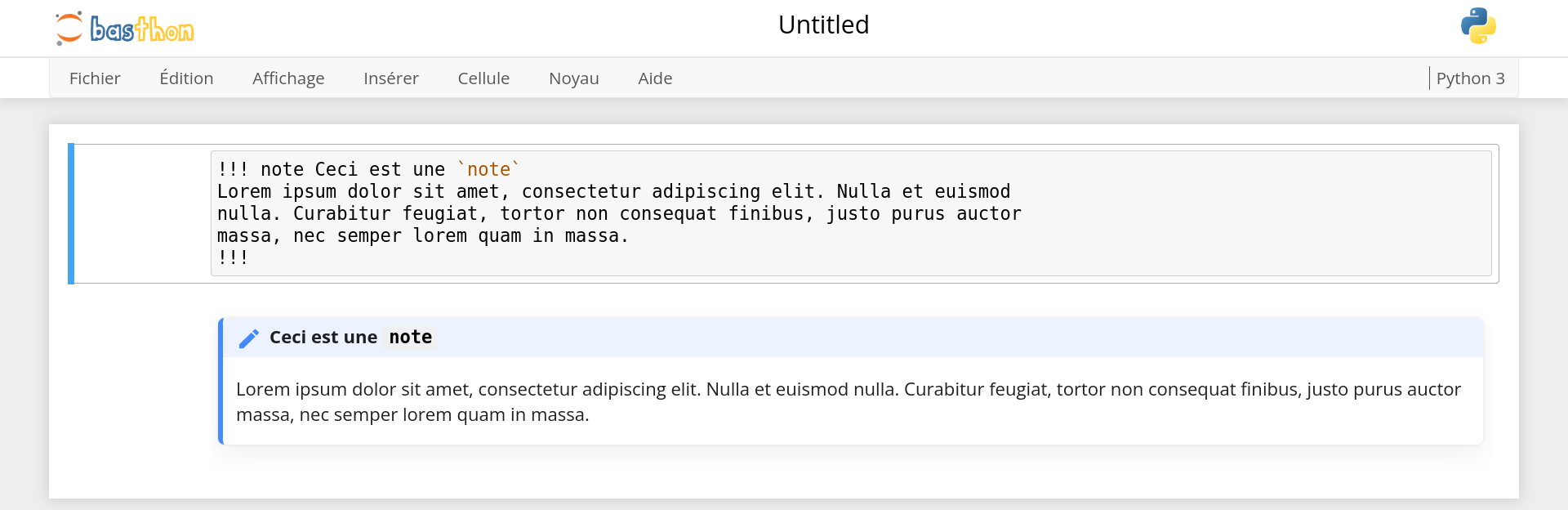
The Markdown syntax of text cells is enriched with admonitions, these boxes that highlight a remark, a tip, a warning…
Astuce
The filesystem: URL scheme also displays, in a Markdown cell, an image of Python's filesystem (see the section File access).
Slideshow
The button presents the notebook as a slideshow (thanks to the RISE extension). The split into slides is set cell by cell with the View › Cell Toolbar › Slideshow menu.
The language of the interface
The interface of the notebook is available in several languages (French by default, English, German, Spanish, Italian, Dutch, Portuguese, Russian, Chinese and Japanese). The language is chosen with the lang URL parameter, for instance https://notebook.basthon.fr/?lang=en, and your browser then remembers it.
Extensions of the notebook
Extensions can be enabled to extend what the notebook offers, with the extensions URL parameter, whose extension names are separated by commas (for instance extensions=linenumbers,romd).
The linenumbers extension
With the extensions=linenumbers URL parameter, line numbers are shown as soon as the notebook opens (without going through the View menu).
The sequenced extension
With the extensions=sequenced URL parameter, the notebook is put in a mode where cells are unlocked one after the other, as the user's code passes validation cells. An example in the gallery shows how it works. The help on this subject is here.
The romd extension
With the extensions=romd URL parameter (for read-only markdown), the Markdown cells of the notebook can no longer be edited, and no such cell can be created. This is handy not to disturb a user discovering the notebook, or who does not need to be able to "break" the cells holding the instructions.
The admonitions and admonition extensions
These extensions used to enable admonitions. They are no longer needed since version 0.62.22 (September 2024): admonitions are always available. They are still accepted so as not to break old links.