
tkinter windows in Basthon
It was a recurring request: tkinter programs now work in Basthon. Windows, buttons, entry fields, canvases, animations, menus, ttk widgets, messagebox or simpledialog dialogs… everything is shown in the graphical view of the console or below the cell of a notebook, and reacts to the mouse and the keyboard.
import tkinter as tk

window = tk.Tk()
window.title("Counter")
value = tk.IntVar(window, 0)

tk.Label(window, textvariable=value, font=("Arial", 32)).pack(padx=40, pady=10)
tk.Button(window, text="+ 1",
          command=lambda: value.set(value.get() + 1)).pack(pady=10)

window.mainloop()
There is nothing to install nor to change in the code: import tkinter is enough. The only difference with a computer: mainloop() returns at once. The window stays alive (clicks, keyboard, animations with after) while the rest of the program or other cells run, which can read what was typed in the window. Dialogs, however, do wait for the user's answer, as on a computer.
The gallery gets a few examples, from the simplest to the most complete: a counter, a small drawing program, a brick breaker, and a notebook that gathers a counter, a form with its dialogs, and a snake game.
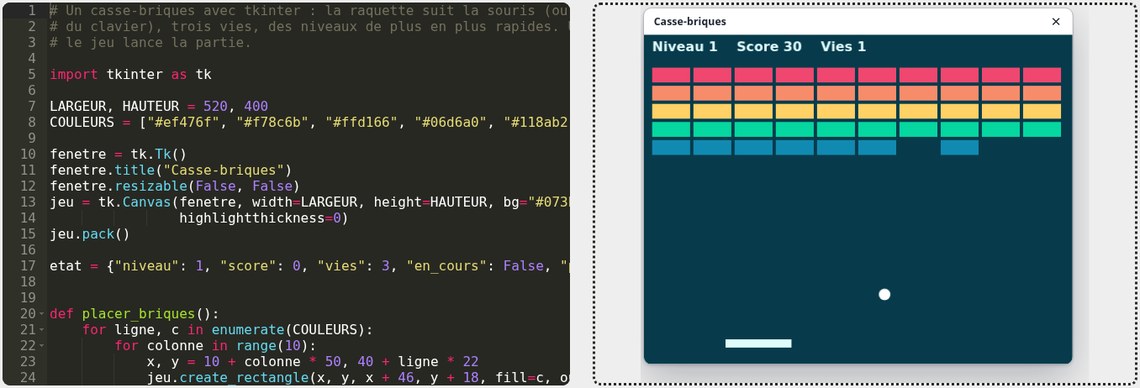
The notebook of examples:
Under the hood
The browser has no Tk: tkinter relies here on tkinter-web-backend, a Tk engine written in Python for Basthon. It computes the windows (pack, grid and place layouts, fonts, canvas items…) like the real Tk, and the page just draws them. It is free software, published on PyPI, which is also useful outside Basthon: python -m tkinter_web program.py shows the windows of a tkinter program in a tab of the browser.
To use the keyboard in a window, click in it first. And to animate, after is the right way (rather than a loop with sleep): the window stays responsive.